The ApplyMog extension
Where applying happens. It fills the application in front of you from your profile, saves the job to your workspace, and records your statement when you submit.
Install it
During the beta the extension comes from this site rather than the Chrome Web Store. The download is made for this server, so it already knows where your workspace is.
- Unzip the download. It holds one folder,
ApplyMog-extension. - In Chrome, open
chrome://extensionsand turn on Developer mode. - Choose Load unpacked and select that folder.
- Pin ApplyMog from the puzzle-piece menu, so its button is in reach.
Google Chrome or Chromium on a computer. Other browsers have not been tested.
Pair it with your account
Pairing gives this one browser its own access to your workspace, which you can revoke without changing your password.
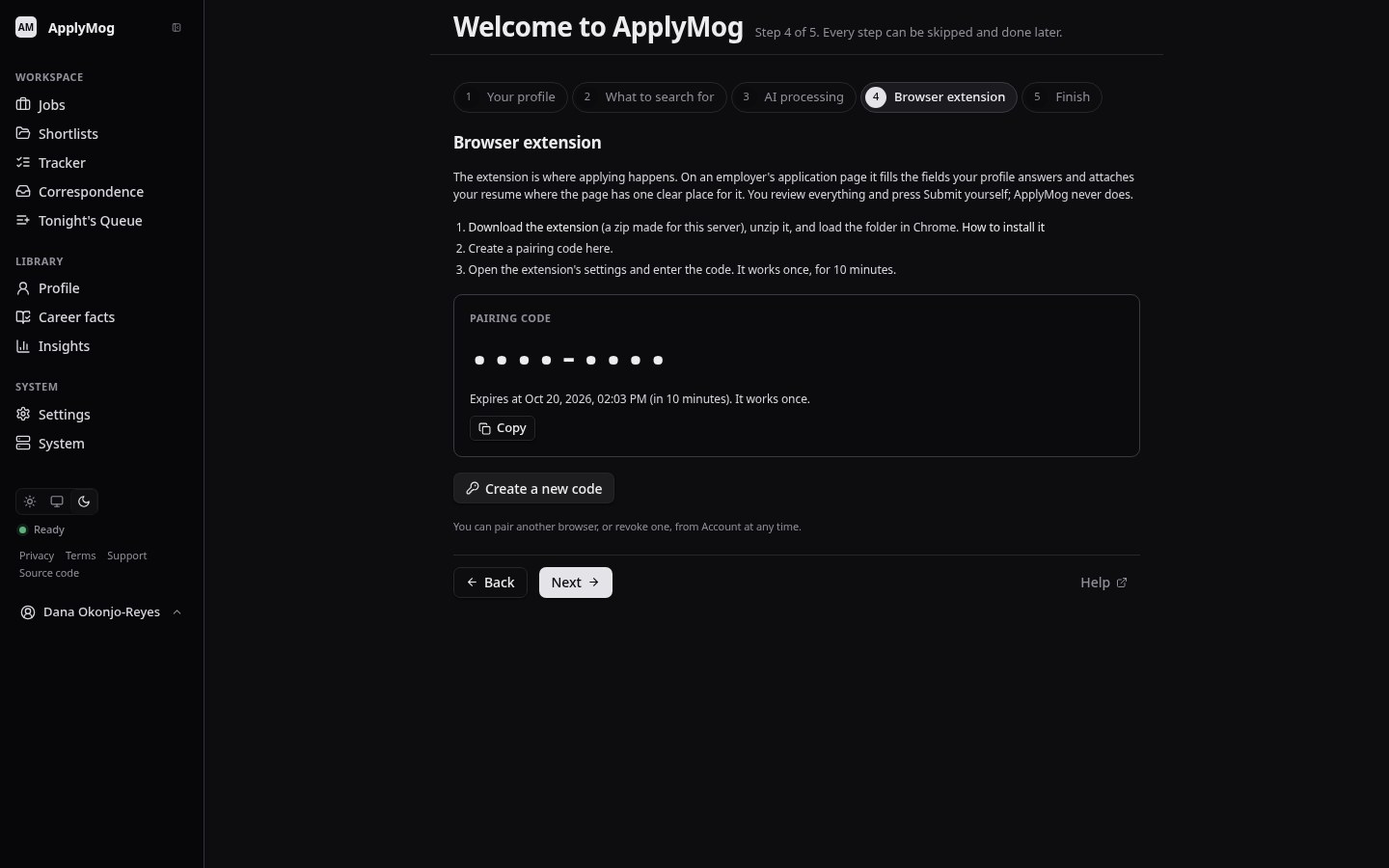
- Sign in, and open Account, then Browser extension (or the Browser extension step of the welcome flow).
- Press Create a pairing code. It works once, for ten minutes.
- Open the extension's settings (the gear in its window), go to the ApplyMog section, enter the code and press Pair. It says Paired.
Changing your password signs every paired extension out; pair it again with a new code. Never send a pairing code to anyone, support included.
On an application page
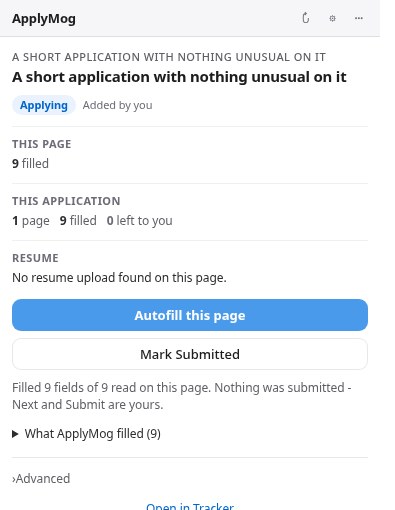
- Save to Jobs adds the job to your workspace, once.
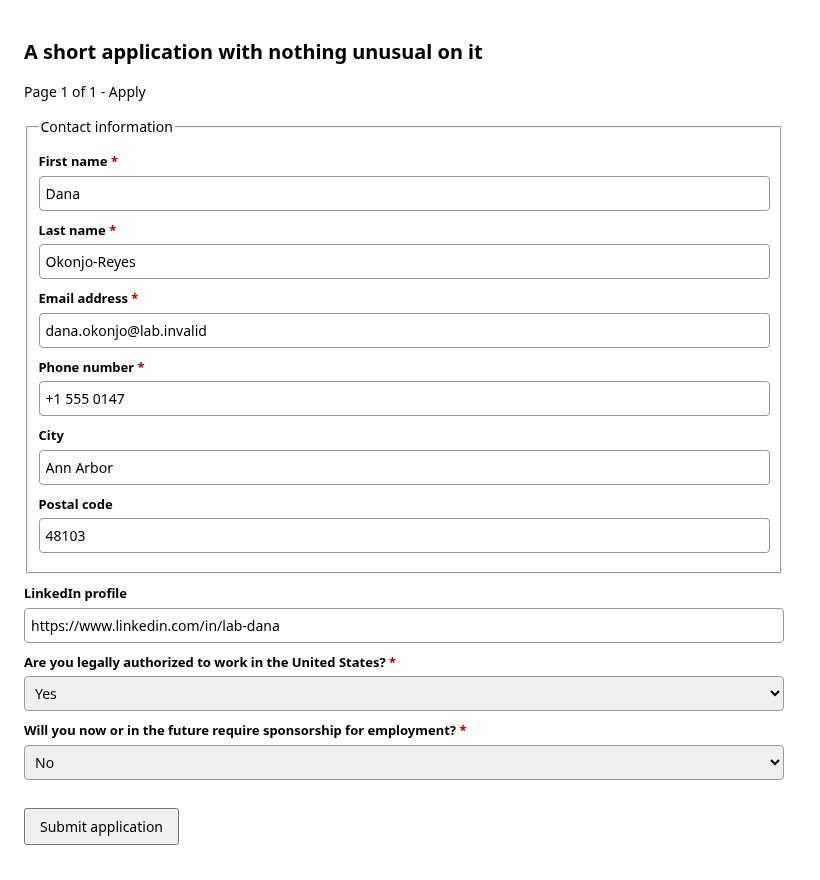
- Autofill this page fills what your profile answers and reports the rest.
- Review remaining walks you to each field still open, one at a time. It fills nothing and presses nothing.
- Mark Submitted, after you have submitted, records your statement. Pressing it twice records it once.
On a form with several pages, you press Next, then Autofill the next page.
What it fills, and what it leaves
The rule is simple: an answer needs evidence in your profile. Anything else is left blank, highlighted, and explained.
Filled when your profile has the answer
- Contact details, address and links.
- Work authorisation and sponsorship, from exactly what you set. The more specific question is answered first.
- Education and employment, from your history.
- Answers you chose to remember from an earlier form, for the same question.
- Your resume, on the one upload the page names as the resume, if it is empty.
Always left to you
- Passwords, verification codes and CAPTCHAs.
- Signatures, certifications and consents.
- Gender, race, veteran and disability questions, unless you turn sharing on in your profile.
- Social Security numbers and similar identifiers.
- Any other upload: transcripts, photos, portfolios.
When something is not right
The extension says it is not paired
The pairing was revoked, your password changed, or the code expired before you entered it. Create a new code under Account, Browser extension.
It says this copy of the extension is out of date
The server was updated. Download the extension again from this page,
remove the old one at chrome://extensions, and load the new folder.
Pair it again.
A field was left blank that I expected to be filled
Open the extension's report: each blank carries its reason, usually that your profile has no answer for it. Add the answer to your profile, and it will be filled next time.
The form did not fill at all
Compatibility with employer sites is limited and not guaranteed. Fill the form yourself, and tell the person who invited you which site it was. Nothing is ever submitted until you submit it.